
ThryvPay Mobile Application Guide
ThryvPay Mobile Application Guide
Let’s activate your ThryvPay Account starting with your business information
Business Information
Click the Account Setup banner or the continue button.
- Start filling out your Business details by clicking Start.
- Select your business type; Sole Propriator, LLC, Partnership, Corp, Non Profit or Government.
Now let’s search for your business using Google search…
- Start typing in your business name or phone number.
- Google will display all results related to that entry.
- Select your correct location.
- If you can’t find your business on Google, you may enter the information manually by clicking the Can’t find link on the bottom of the screen.
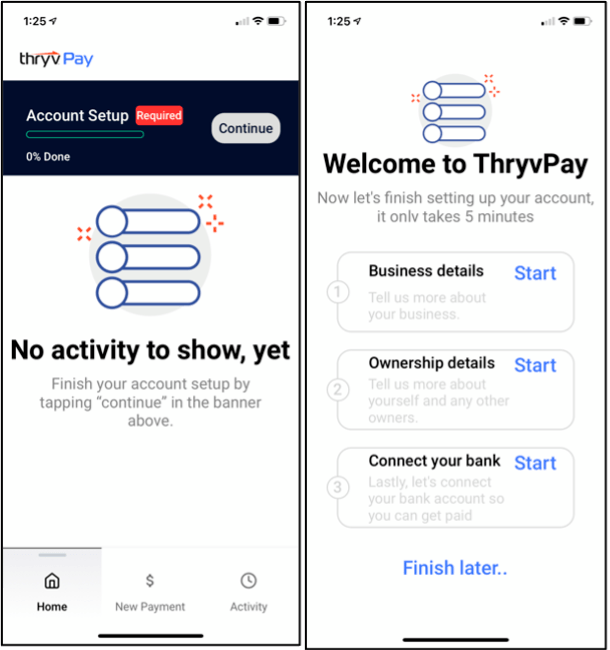
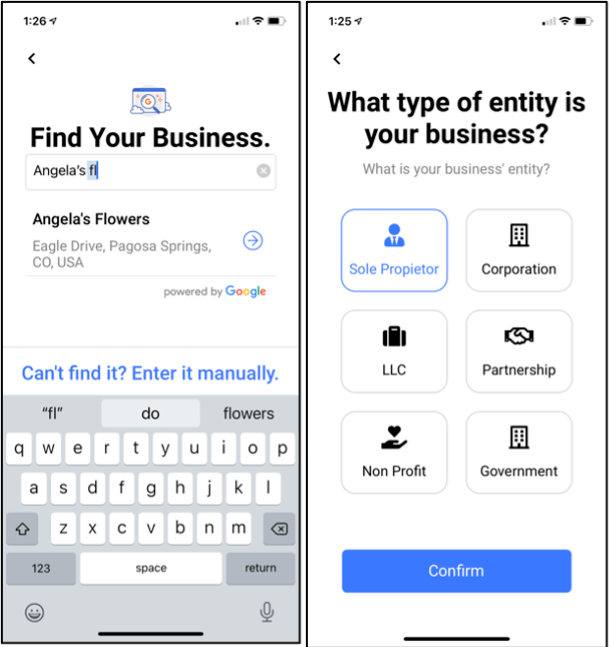
- Once you have selected your business, verify that all your information is correct.
- Click confirm & continue.
- Complete the additional questions about your business.
- Enter your business’ Legal or Tax Entity name. This is the name you file your business taxes under. If your business is a Sole Prop this is your first and last name.
- Enter the year your business started or opened.
- Enter your business TaxID number. This is the number you use for filing taxes. If your business is a sole prop, this is your Social Security Number.
- Enter your average transaction amount, this is the average amount of all of your services/payments, if you occasionally have larger transactions, enter the larger amount.
- Enter your Annual transaction volume assumption.
- Click continue.
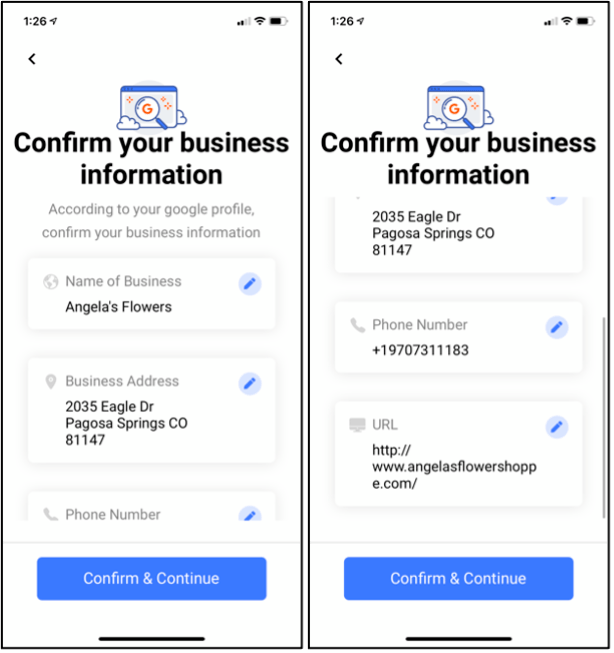
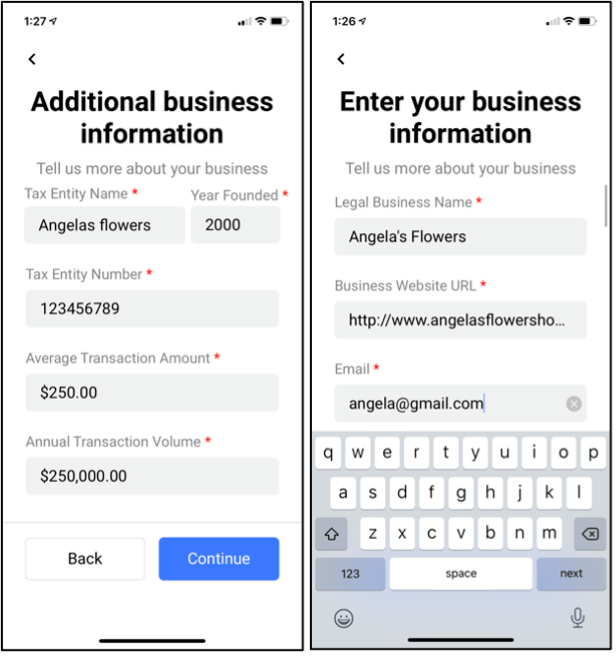
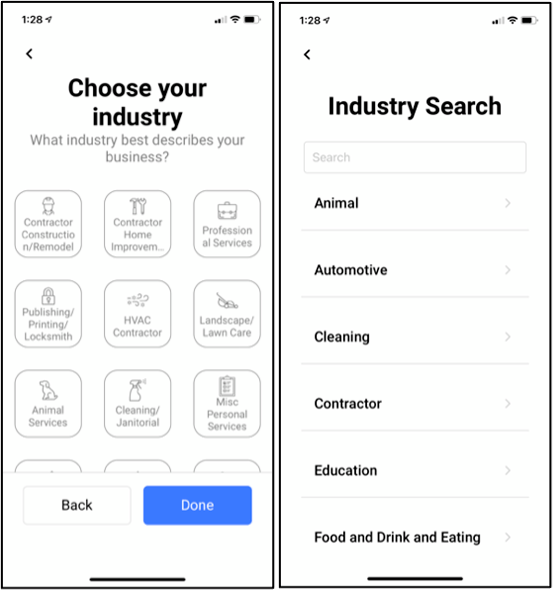
- Choose your industry type – this is the industry associated to your banking category MCC code.
- If you don’t see an exact match you can search additional industries by clicking the “can’t find” link at the bottom of the screen.
- Start typing in your category name, if still not found you may be considered either professional or personal services.
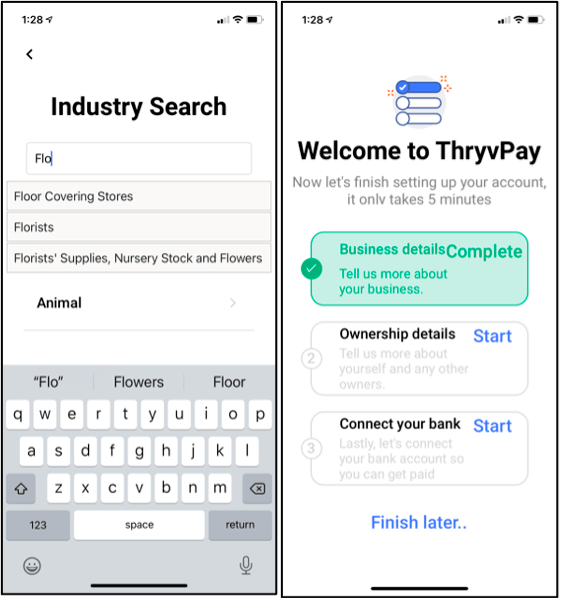
Awesome, your business details are now complete.
Owner Details
- Click on the Ownership details section.
- You will need to complete all the questions to submit your application.
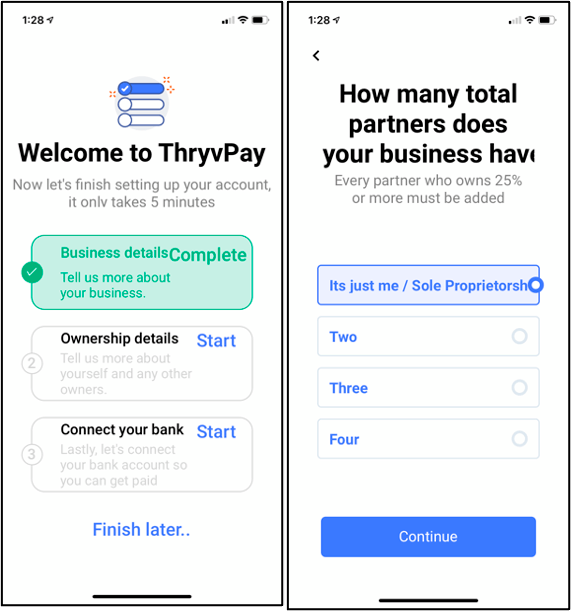
- How many partners/owners own more than 25% of your business, click continue.
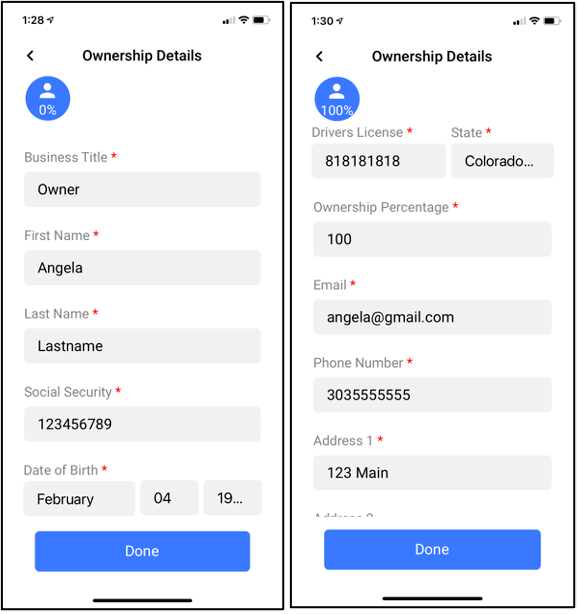
- Business title.
- Owner First and last name.
- Owner Social Security Number.
- Owner Date of Birth.
- Owner Driver’s license # and State.
- Ownership percent for that owner being listed.
- Owner Email.
- Owner Phone number.
- Owner Address, city, state, and zip.
- Click done!
Connect Bank Account Via Plaid
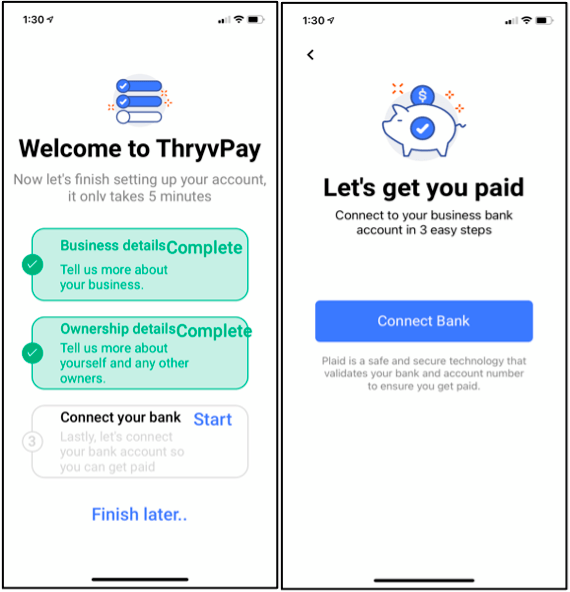
Lastly, let’s connect your bank account via Plaid. For more information on Plaid click here.
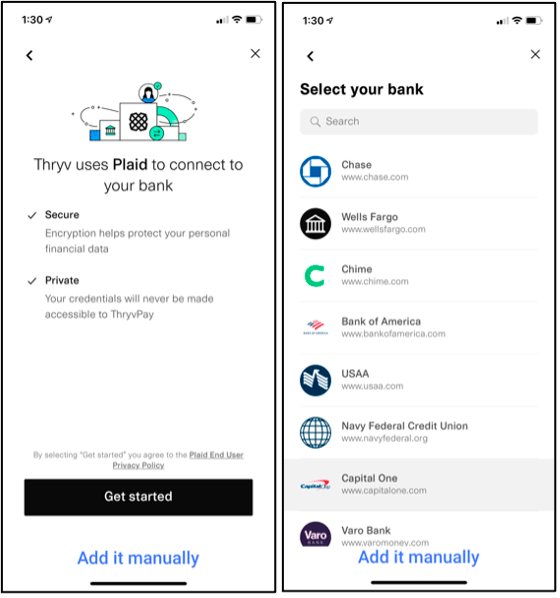
- Click Connect Bank and then click Continue.
- Search for your bank by name, and click on the correct one.
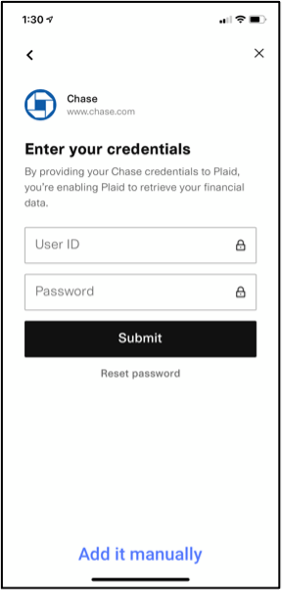
- Log in using your bank log in username and password.
- Select the business bank account you want to link to, click submit.
Finally, Complete the account set up and read and accept the ThryvPay Terms and Conditions.
- You will be required to upload an image of your Driver’s License prior to completing your application.
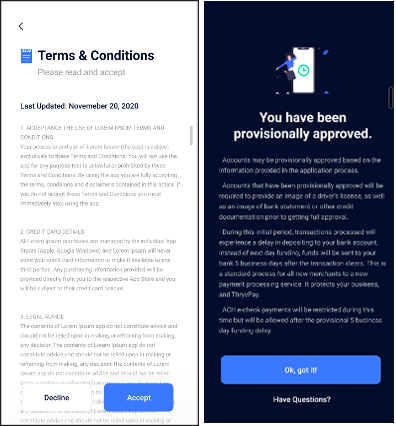
Congratulations! You are now provisionally approved.
Ready to create a payment request? Check out this article to find out how, create a payment request.
What does provisionally approved mean?
- Accounts may be provisionally approved based on the information provided in the application process.
- Accounts that have been provisionally approved will be required to provide an image of a driver’s license, as well as an image of bank statement or other credit documentation prior to getting full approval.
- During this initial period, transactions processed will experience a delay in depositing to your bank account. Instead of next day funding, funds will be sent to your bank 5 business days after the transaction clears. This is a standard process for all new merchants to a new payment processing service. It protects your business, and ThryvPay.
- ACH e-check payments will be restricted during this time but will be allowed after the provisional 5 business day funding delay.
- For more details on provisional approval click here
- Learn How to Process a Payment by clicking here
Didn’t get approved? Or have you been denied? You can contact ThryvPay@thryv.com to gather more detail regarding our decision. To see our restricted categories, click here.


 Translate